
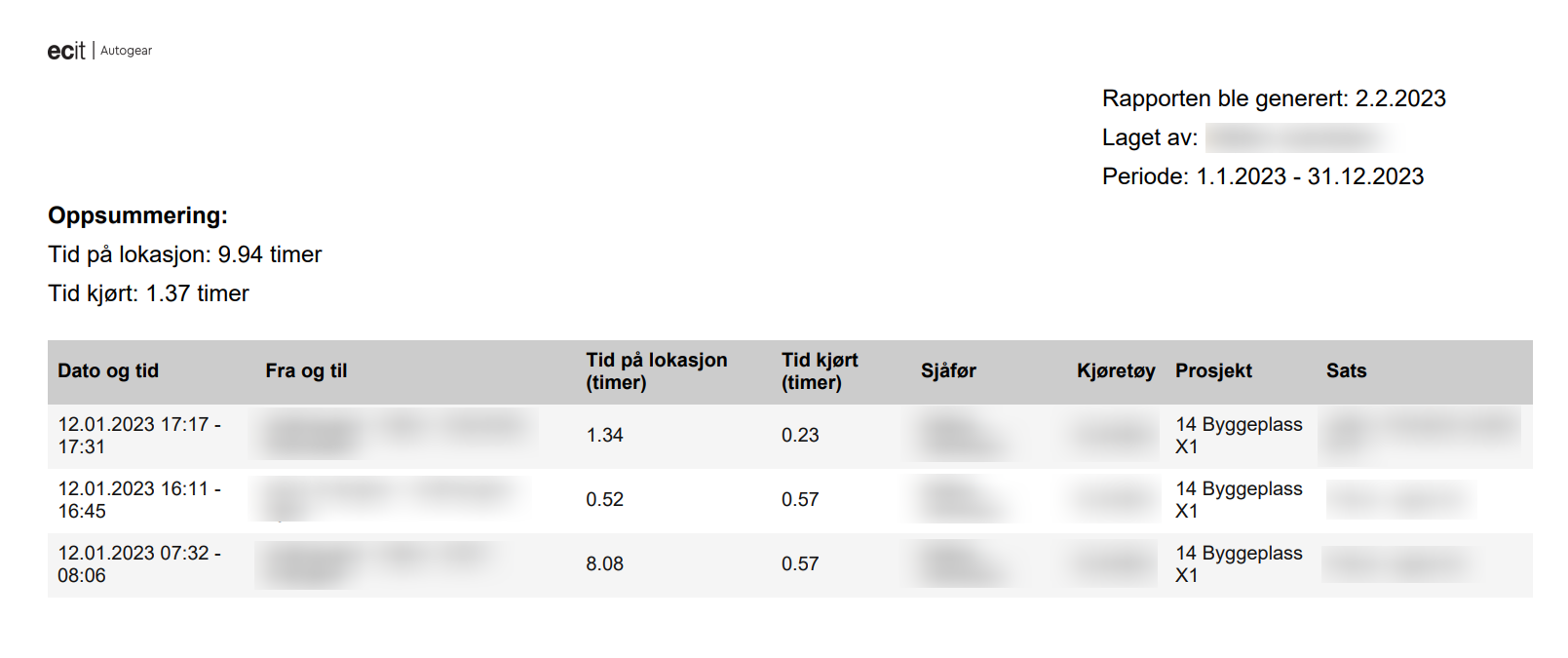
The time report gives you the invoicing basis you need for time spent driving, or time linked to an address or project. You'll find it at https://app.autogear.com/dashboard/time-report.
The report gives you two key figures:
- How long you have driven
- How long you've stayed at a place between two trips
This is the attachment many have asked for as a basis or documentation in connection with invoicing assignments. The report is recommended for use together with the project module, as the result then becomes completely accurate.
The sum you get is in decimal format, and can be entered directly into your accounting system for billable time.
How the time format works
Examples of how time is shown as decimals:
| Time | Decimal hours |
|---|---|
| 30 minutes | 0.5 hours |
| 45 minutes | 0.75 hours |
| 1 hour and 45 min | 1.75 hours |
The report can be downloaded as a PDF for those who want a supporting document that can be forwarded or used as an attachment to an invoice. For those who want the Excel version, it's also available in .xls and .csv format.
Converting decimals to clock hours
If you want to convert the time shown as decimals to regular clock hours, you can use this calculation:
60 / 100 × decimal time
Example: The time report shows 0.23 hours.
- 60 / 100 × 0.23 = 13.8 minutes
- 0.23 hours = 13 minutes and 48 seconds